
Collage Maker | Photo Editor
Photo Editor & Collage MakerPhotography
4.942.42K Reviews
- Version
- 2.454.225
- Installs
- 100.00M
- Age Rating
- Everyone
Screenshots





Our Review of Collage Maker | Photo Editor
 Analysis by Appyee
When I want to turn a handful of camera-roll photos into one image without opening a full design program, Collage Maker | Photo Editor is the sort of tool I reach for. It puts collage-making and everyday photo tweaks together, which makes it useful for quick keepsakes, social posts, and small creative projects. Its appeal is speed: I can start with pictures I already have and shape them into something shareable without needing to learn a complicated workflow.
That focus also helps explain where it fits. This is a photography app from Photo Editor & Collage Maker, rather than a professional editing suite or a general-purpose graphic design workspace. The experience is aimed at people who want a finished image with a little personality, not a long session of fine-grained retouching. I find that distinction important when deciding whether its collection of tools will suit the way you actually work.
How it feels to use today
As soon as you fire up the Collage Maker | Photo Editor, you’re greeted with a clean, intuitive interface. No fuss, no muss. You can quickly dive into creating collages or editing individual photos. Whether you’re a newbie or a seasoned photo editor, the app's simplicity makes it a breeze to navigate.
The collage feature is where the magic happens. You can choose from a myriad of templates - from grids to freeform designs. It’s as simple as dragging and dropping your photos into the slots. The app also lets you adjust the border size and color, so you can customize your collage to fit your aesthetic vibe. Super handy, right?
The range is a practical part of the pitch: the app is known for over a thousand layouts, alongside filters, stickers, and text tools. That variety gives me room to choose a layout based on the story I want the pictures to tell rather than squeezing every set into the same grid. I would still pick a template with the final destination in mind. A collage for a phone screen can tolerate a different balance from one meant to be viewed as a square social post, and tiny details may be hard to notice after sharing.
Editing tools and useful trade-offs
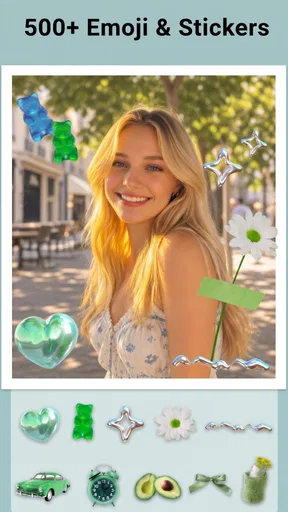
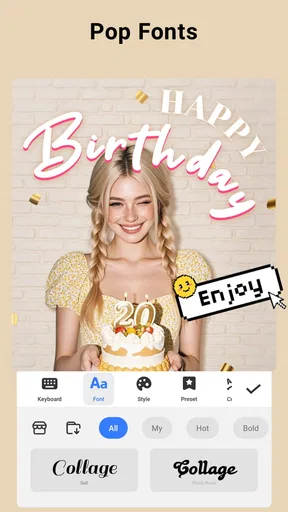
But wait, there’s more! The photo editing tools are a real standout. You’ve got your usual suspects: filters, crop, rotate, and adjust tools (think brightness, contrast, saturation). But it doesn’t stop there. The app boasts a cool selection of effects and overlays, so you can add a touch of drama or whimsy to your shots. Feeling artsy? Throw in some stickers or text to make your images pop.
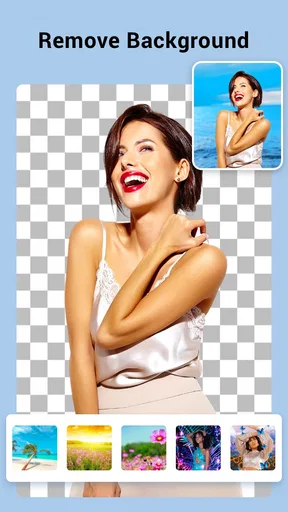
One thing I absolutely love is the background removal tool. It’s surprisingly accurate and lets you isolate subjects effortlessly. Perfect for those times you want to create something a bit more polished or playful.
For a cleaner result, I’d settle the crop and rough color balance before adding decorative details. That order keeps stickers and captions from distracting me while I’m still deciding which photos work together. If I’m using a filter across a collage, I also check that faces and lighting still look consistent in every panel; a preset that flatters one image can make another look too dark or overly saturated.
The background-removal option is most useful when the subject has a clear outline and I want to place it into a playful composition. I wouldn’t treat it as a substitute for careful manual masking in a demanding design job: fine hair, transparent objects, or busy edges can make any automatic cutout less convincing. A quick check around the subject before sharing is worth the extra moment, especially against a plain, contrasting background where rough edges stand out.
From a quick collage to a finished share
Once you’ve crafted your masterpiece, sharing it is as smooth as butter. The app integrates seamlessly with social media platforms, so you can show off your creations on Instagram, Facebook, or wherever your followers hang out. The export options are flexible, allowing you to save your images in various resolutions, which is a nice touch if you’re conscious about storage space.
And speaking of saving, the app automatically saves your projects in progress, so you can pick up right where you left off. No more losing your hard work because of an accidental app closure. Phew!
A realistic use for that saved-project workflow is a family-event recap. I might select a few photos after a birthday, make a first pass at the layout while I have a spare minute, then return later to adjust the order and caption before exporting. Rather than making one collage carry every moment, I’d build a couple of focused versions: one with group shots and another with small details such as the cake or decorations. That usually makes the images easier to scan on a phone.
Before exporting, I’d also check the proportions and read any text at the size it will actually be seen. A long caption can crowd a compact layout, and a decorative font that looks charming while editing may lose legibility when reduced. If storage matters, a smaller output can be a sensible choice for casual sharing; if I want to keep a favorite memory, I’d choose a higher-resolution option when available and save the finished image somewhere I can find it again.
Compared with a basic collage tool, this app’s appeal is having photo adjustments and decorative choices close to the layout process. A dedicated photo editor may be a better fit when the main task is precise retouching, while a broader design app can offer more control over complex typography and page composition. I’d choose this one when the job is specifically to combine personal photos quickly and give them a coordinated look, not when I need a polished poster with many layers or exact brand rules.
What its growth means for regular users
Collage Maker | Photo Editor has been available since October 24, 2016, and its current version is 2.40.210. That gives me a useful sense of a product that has continued to be maintained, but a version number alone doesn’t tell me which individual tools have changed or how a particular edit behaves. I’d judge the current app by the workflow in front of me rather than assuming that every feature has recently been revised.
For existing users, the practical question is whether the current version remains comfortable for their usual projects: selecting photos, choosing a layout, making adjustments, and saving a result. If you already have a familiar routine, it makes sense to keep a copy of important finished images outside the editing session too. Automatic project saving is convenient, but a final exported image is the safer thing to rely on when a collage matters.
The app has a 4.9 average from around 3.6 million ratings, with about 42,000 written reviews, and it has passed 100 million installs. Those figures suggest that collage-making is a well-established use case for it, though they can’t tell me whether its editing style matches yours. I’d treat that popularity as reassurance that many people find the basic idea useful, not as a reason to overlook your own needs or preferences.
Who should choose it, and what to keep in mind
At no cost to install, it is easy to try for occasional projects. The app is rated for Everyone, and it supports devices running Android 9 or later. Some optional items are sold through in-app purchases, priced from $0.99 to $21.99 per item, so I’d explore the free tools first and only consider paying if a particular extra becomes part of my regular workflow. That approach avoids buying a pack just because it looks appealing in the moment.
I’d recommend it to someone who often makes birthday recaps, travel grids, simple comparison collages, or playful images for friends and family. It also suits a casual creator who wants filters, text, and stickers in the same general editing space. I’d skip it if I mainly need detailed skin retouching, precise layer management, typography controls for professional graphics, or a repeatable export process for client work. In those cases, a specialist editor or design tool is likely to be a better match.
One small but useful habit is to decide what the collage is meant to communicate before choosing a layout. If the goal is to show a sequence, arrange pictures in a clear order; if the goal is to compare details, use similarly framed photos and avoid filling every open space with decoration. The app offers plenty of ways to embellish an image, but restraint often makes the people and moments easier to notice.
Another trade-off is that abundant templates can make choosing one feel like work in itself. I’d shortlist a few layouts that suit the number and shape of my photos, then focus on the pictures rather than browsing indefinitely. If a face lands awkwardly near a border or a crop removes an important detail, changing the template early is usually faster than trying to rescue a poor fit with extra effects.
My verdict after using it
So, should you give Collage Maker | Photo Editor a whirl? If you’re someone who loves getting creative with your photos, it’s definitely worth a spot on your home screen. The app strikes a great balance between functionality and fun, offering enough tools to satisfy both casual users and those who want to dive a bit deeper into editing.
While there are in-app purchases for some premium features and content packs, the free version is robust enough to get you started. Plus, it’s always nice to have the option to upgrade if you find yourself wanting more.
When I’m deciding whether to keep using it, I’d pay attention to the details that affect repeat projects: whether my preferred layouts are easy to find, whether text stays readable at the finished size, and whether the result looks right after it leaves the editor. I’d also watch for how future versions handle the balance between quick collage work and more involved editing, without assuming a version update promises a specific new tool. Those are the changes that would matter to my everyday use.
Final thoughts
In a world where we’re constantly capturing moments, Collage Maker | Photo Editor offers a delightful way to enhance and share those memories. It’s user-friendly, packed with features, and just plain fun to use. Whether you’re crafting a birthday collage or giving your selfies a little extra flair, this app has you covered. So go ahead, unleash your inner artist and let your photos shine!
Privacy and Permissions
See what permissions an app requests and how it handles your data.
- Photos/Media/Files
- read the contents of your USB storage, modify or delete the contents of your USB storage
- Storage
- read the contents of your USB storage, modify or delete the contents of your USB storage
- Wi-Fi connection information
- view Wi-Fi connections
- Other
- view network connections, change network connectivity, connect and disconnect from Wi-Fi, full network access, control vibration, prevent device from sleeping, Google Play license check, read Google service configuration
Verdict
Strengths of Collage Maker | Photo Editor
- User-friendly interface for quick editing.
- Wide range of customizable templates.
- High-quality export options available.
- Seamless social media sharing.
- Supports multiple photo formats.
Limitations of Collage Maker | Photo Editor
- Contains ads in the free version.
- Limited features without subscription.
- Occasional app crashes reported.
- Watermark on free version exports.
- Some features require internet access.
Similar Picks in This Category
View All
Google Photos
Google LLC4.4

Gallery
Google LLC4.2

Picsart AI Photo Editor, Video
PicsArt, Inc.3.9

B612 AI Photo&Video Editor
SNOW Corporation4.1

BeautyPlus-Selfie Photo Editor
PIXOCIAL TECHNOLOGY (SINGAPORE) PTE. LTD.4.5

Remini - AI Photo Enhancer
Bending Spoons4.1
Frequently Asked Questions
What features does Collage Maker | Photo Editor offer?
Collage Maker | Photo Editor provides a variety of features to enhance your photo-editing experience. You can create stunning collages with customizable layouts, add text, apply filters, and use a wide range of stickers. The app also offers basic editing tools like cropping, rotating, and adjusting brightness and contrast, ensuring a comprehensive editing suite.
Is Collage Maker | Photo Editor free to use, or are there in-app purchases?
Collage Maker | Photo Editor is free to download and use, offering a range of features at no cost. However, it does include in-app purchases for additional content such as premium stickers, exclusive filters, and advanced editing tools. These optional purchases enhance the user experience but are not necessary for basic functionality.
How user-friendly is Collage Maker | Photo Editor for beginners?
Collage Maker | Photo Editor is designed with a user-friendly interface, making it accessible for beginners. The app provides intuitive navigation, clear instructions, and helpful tutorials to guide users through the editing process. Even those with little to no experience in photo editing will find the app straightforward and easy to use.
Does Collage Maker | Photo Editor require an internet connection to function?
Collage Maker | Photo Editor can be used offline for most of its basic editing features, allowing you to edit photos without an internet connection. However, some functionalities, such as downloading additional content or sharing your edited photos directly to social media, require internet access.
Can edited photos be saved in high resolution using Collage Maker | Photo Editor?
Yes, Collage Maker | Photo Editor allows you to save your edited photos in high resolution. The app ensures that the quality of your images is maintained, making it suitable for both personal use and professional purposes where high-quality images are necessary. You can choose the resolution settings before saving your work.
